

Using Advanced Search Parameters
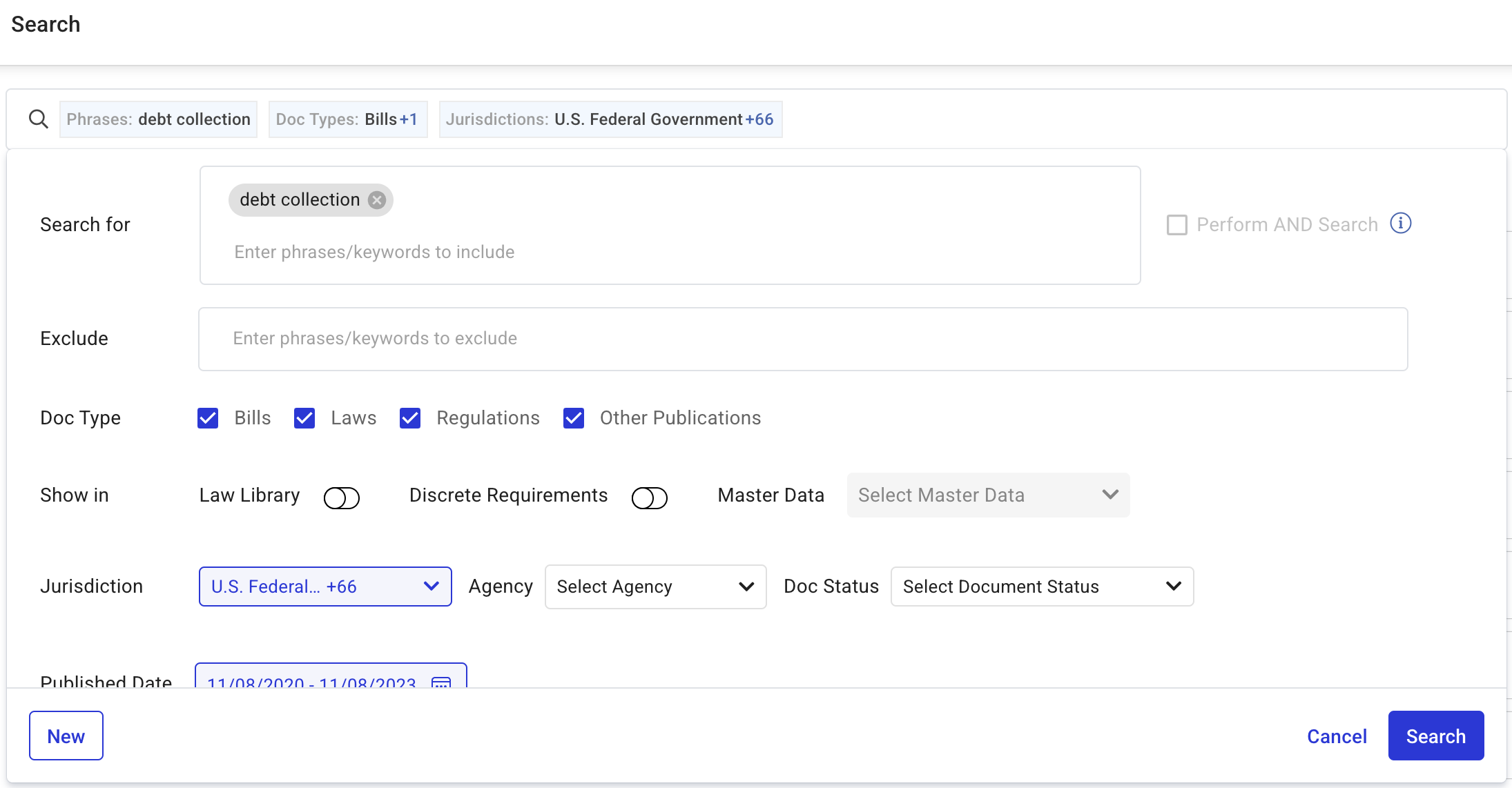
Search For
-
Enter one or more keywords to search for documents containing those terms.
-
Press Enter after typing each keyword.
-
Users can also search using citations and UIDs for more precise results.
Exclude
-
Enter keywords to exclude from search results.
-
Example: Searching for money, crime, and penalty but excluding dollars ensures documents containing dollars are omitted.
Perform AND Search
-
Enable the AND Search checkbox to retrieve documents containing all entered keywords.
Limit: Up to five keywords at a time.
Document Type Filter
Filter results by document type:
-
Bills
-
Laws
-
Regulations
-
Other Publications
-
If no document type is selected, all are included by default.
Show in Law Library
-
Enable this toggle to restrict results to documents already in your Law Library.
Show in Discrete Requirements
-
Search for key clauses within documents that have been mapped for compliance.
-
View the number of citations and specific occurrences of your search term.
-
Click on a citation to navigate directly to it.
Master Data Filter (For Discrete Requirements Only)
-
Refine searches by selecting a specific master data entry.
-
Use the search bar within the dropdown to locate specific master data.
Jurisdiction Filter
-
Search within specific jurisdictions you have subscribed to.
-
Some documents may not be in your Law Library. You can add them using the Add to Law Library button.
Agency Filter
-
Filter results by regulatory agencies.
-
Use the search bar to quickly find agencies of interest.
Document Status Filter (For Bills Only)
-
Available statuses:
-
Became Law
-
Introduced
-
Passed Body of Origin
-
Passed Second Body
-
Sent for Signature
-
Published Date Filter
-
Set a date range (as far back as 1900) to filter documents by publication date.
Note: This filter is unavailable when using the Discrete Requirements search.