

Requirements can be created in several ways depending on your workflow — directly from an authority document, from highlighted text or a specific section, or manually from the Requirements list view.
Creating Requirement Manually from an Authority Document
-
Navigate to the authority document.
-
Click the Requirement dropdown in the right-side panel and select Assign Requirement.
-
Use the Search bar to find and assign an existing requirement, or click Create to add a new one.
Creating From Requirements List View
You can manually create a requirement from the Requirements list view:
-
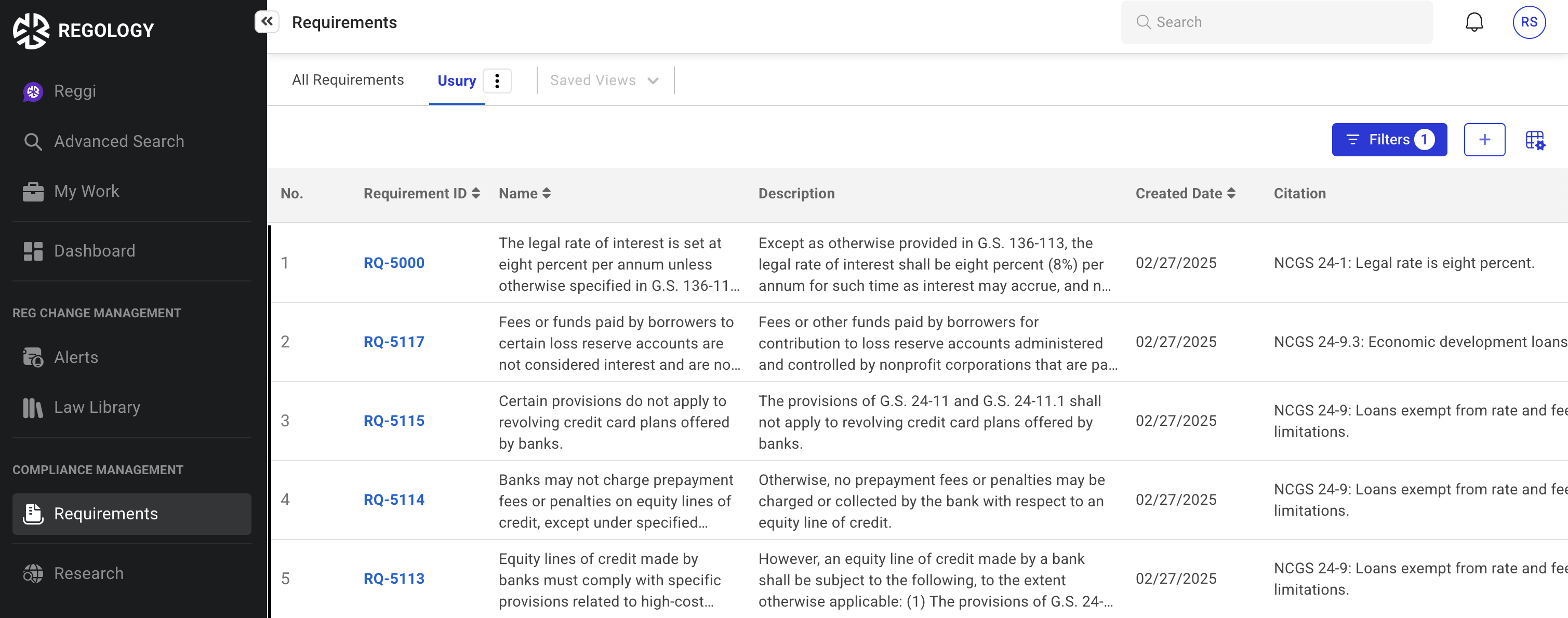
Click Requirements in the left navigation bar.
-
Click the Add icon in the top-right corner.
-
Fill in the Name and Description fields.
-
Click Save to create the requirement.
Creating a Requirement from Highlighted Text in an Authority Document

-
Highlight the Relevant Text
Select the portion of the authority document that defines a regulatory requirement. -
Click the “Add Requirement” Icon
-
Hover over the highlighted text until the action menu appears.
-
Click the document icon labeled “Add Requirement.”
-
-
Enter Requirement Details
-
Provide a title and description for the requirement.
-
-
Save the Requirement
-
Click Save to add the requirement to your compliance management framework.
-
Creating a Requirement from a Section in an Authority Document
Requirements can be created directly from a section within an Authority Document (AD):
-
Navigate to the relevant section and click the Create Requirement icon displayed at the section level.
-
The Create Requirement dialog opens with the following fields automatically populated based on the selected section:
-
Name – Derived from the section title
-
Description – Includes the full section content
-
Citation – Referencing the selected section
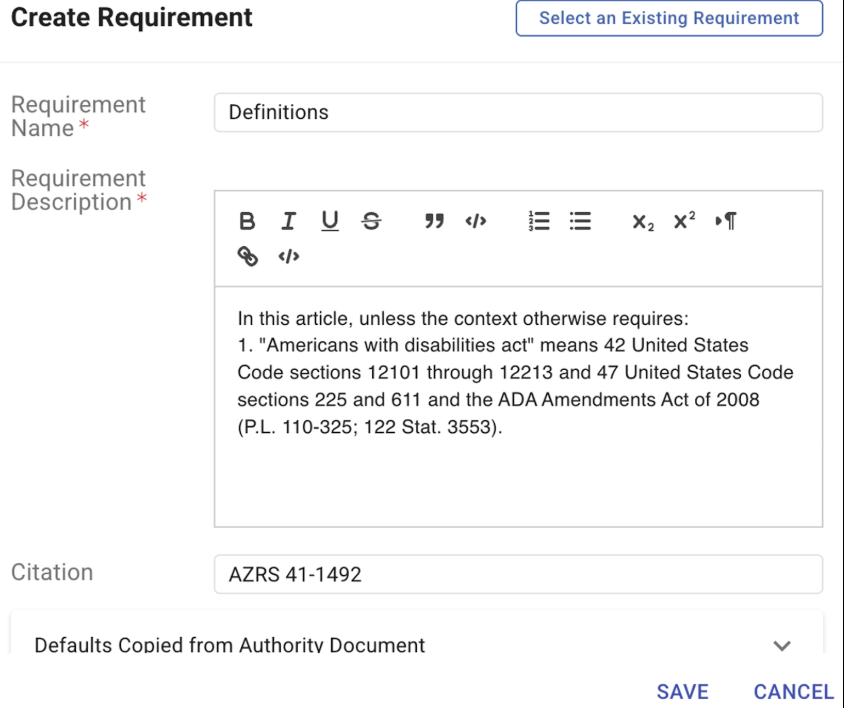
The auto-populated fields remain editable prior to saving. Multiple requirements may be created from the same section, and section-level creation does not restrict clause-level requirement creation. This behavior applies consistently across ADs, Bills, and Custom Corpus.