Applying Filters
The Filters panel in the Risks module allows users to refine the displayed risks using the following options:
-
Search – A search bar to quickly find risks by keywords, risk ID.
-
Owner – A dropdown to filter risks based on assigned owners/groups.
-
Status – Allows filtering risks by their control status:
-
Control defined (Green)
-
No control (Red)
-
No control required (Grey)
-
-
Applicability – A dropdown to filter risks based on relevant categories.
-
Authority Document – A dropdown to filter risks associated with specific regulatory documents.
Layout Settings

-
Save Layout – Saves the current arrangement of columns in the list view so that it can be restored later.
-
Reset Layout – Restores the default or previously saved layout, discarding any changes made to the arrangement.
-
Maximize Layout – Expands the interface to use the full screen or available space, optimizing visibility and focus on the content.
Steps to Create a Saved View:
-
Apply your desired filters on the Risks tab.
-
Click Save View to store your customized risk view.
-
Enter a name for the Saved View.
-
Click Save to confirm.
-
Click Cancel at any time to discard unsaved changes.
Viewing and Editing Risk Details
-
Navigate to the Risks Tab:
-
Go to the Compliance Management section.
-
Select the Risks tab.
-
-
View and Edit:
-
Click on a risk to view its details.
-
Edit the necessary fields.
-
Changes are saved automatically.
-
Deleting Risks
-
Navigate to the Risks Tab:
-
Go to the Compliance Management section.
-
Select the Risks tab.
-
-
Delete a Risk:
-
Hover over the risk you want to delete.
-
Click the Delete icon in the No. column.
-
Confirm deletion by clicking Yes in the confirmation dialog.
-
Managing Risk Information
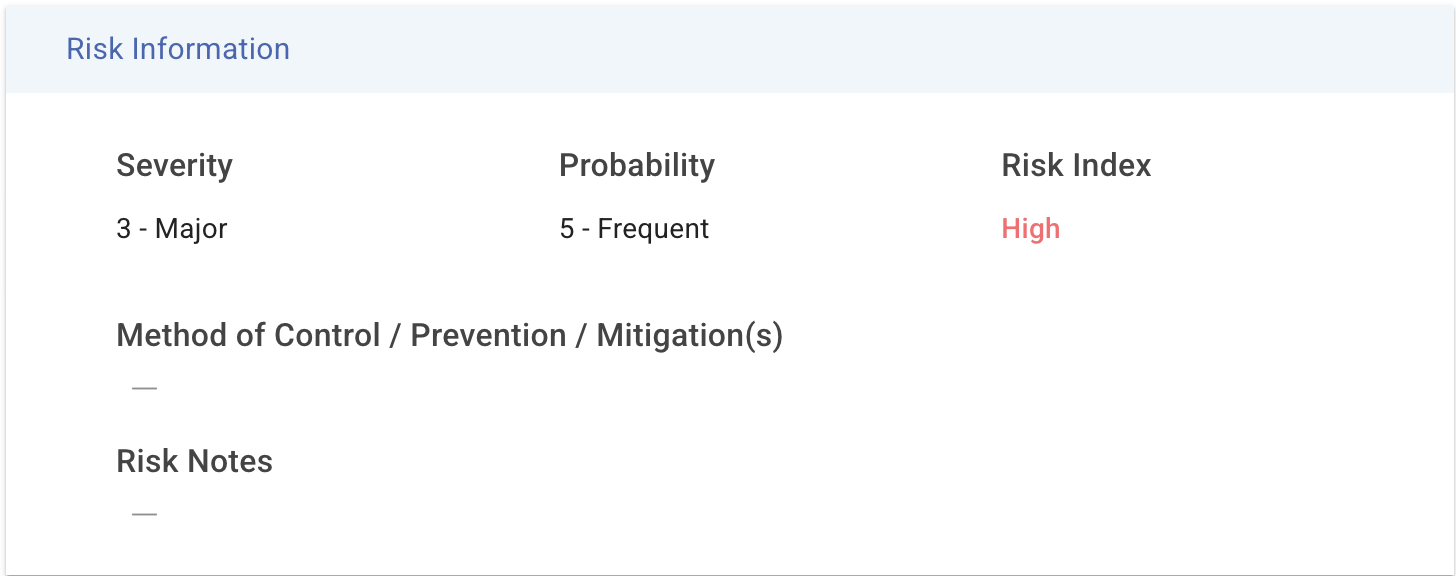
Users can maintain Risk Information in the Risk detail view. This section displays key attributes of a risk, including:
-
Severity: The impact level of the risk (e.g., Major, Minor).
-
Probability: The likelihood of the risk occurring (e.g., Frequent, Rare).
-
Risk Index: Automatically computed based on the combination of Severity and Probability.
Fields in this view can be customized based on your organization's requirements.