Creating a Saved View
-
Apply filters to display relevant Controls.
-
Click Save to View.
-
Provide a name for the saved view.
-
The saved view appears as a separate tab for easy access.
-
Click Cancel at any time to discard unsaved changes.
Creating & Uploading a Policy
To upload a new policy document:
-
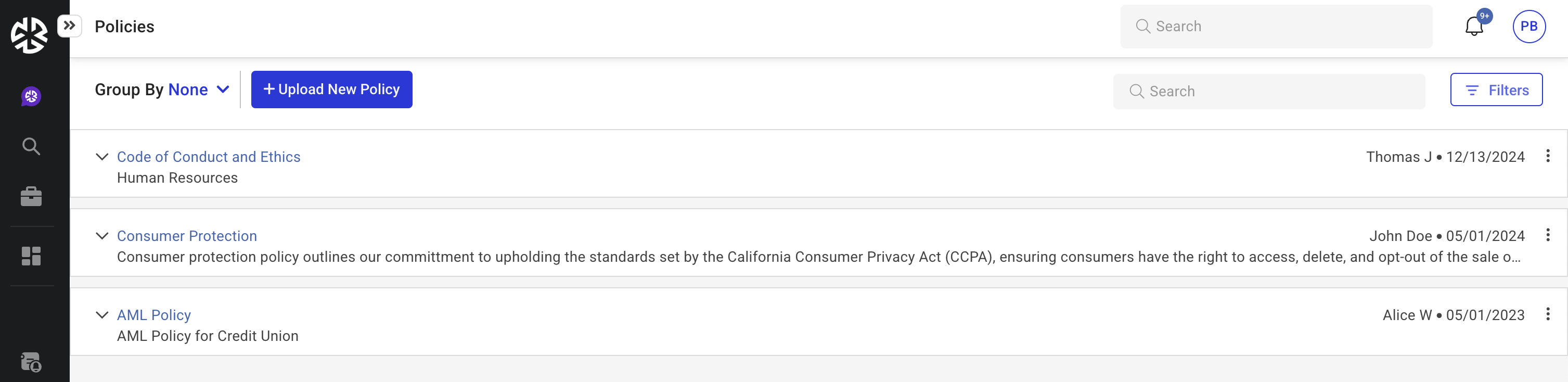
Click Policies in the Compliance Management section of the Regology navigation bar.
-
Click Upload New Policy in the top-left section of the page.
-
The Upload Policy modal appears.
-
Enter the required details:
-
Title and Description
-
Owner of the policy document
-
Effective Date and Last Updated Date
-
Document URL or upload the policy document by dragging and dropping the file
-
-
Click Save to publish the policy.
-
The policy is automatically available for association with authority documents.
-
-
Click Cancel at any time to discard unsaved changes.
Applying Filters
The filters available in the Policies section include:
-
Search – Allows users to search for policies using keywords.
-
Owner – Provides a dropdown to filter policies based on the owner.
-
Effective Date – Allows filtering policies by their effective date.
-
Authority Document – Allows filtering based on associated authority documents.
-
Published Toggle – A toggle switch to filter policies based on whether they are published or not.