Policy Version History and Reversion
The policy modal displays all available versions of a policy in the format Version Number / Date (for example, V6 / 7th August 2025). The currently active version is clearly highlighted.
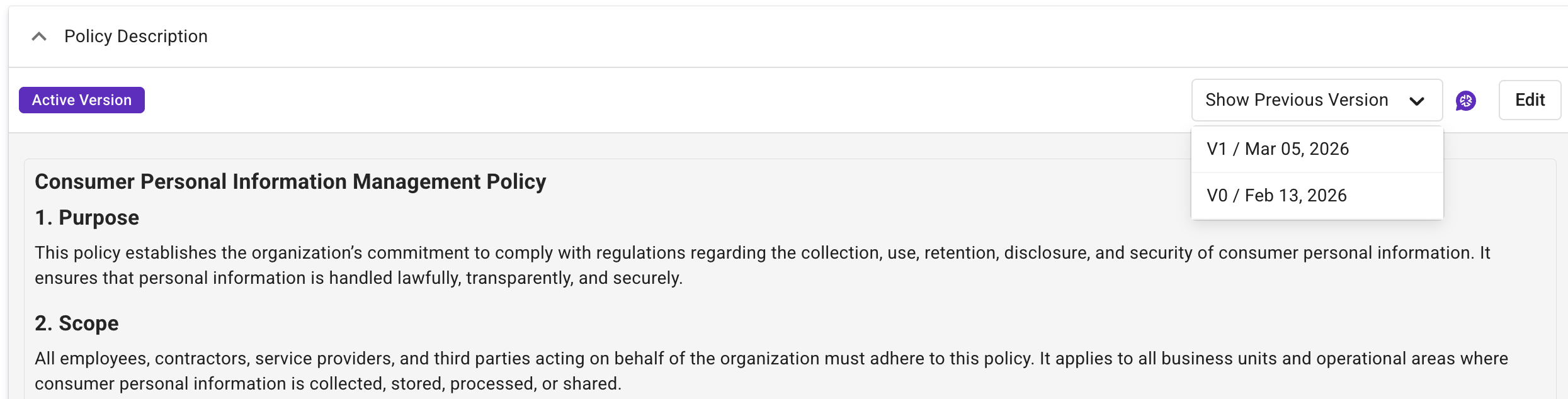
Selecting a previous version displays the available actions:
-
Revert to this Version
-
Cancel
Upon selecting Revert to this Version, a confirmation dialog is presented with the message:
“Policy description will be overwritten. Do you want to proceed?”
Choosing Yes creates a new version using the selected version’s content and sets it as the active version. For example, if V4 is active and V2 is restored, the system creates V5 (a copy of V2) and marks it as the active version. All earlier versions remain unchanged and accessible in the version list.
Choosing No or Cancel closes the dialog without applying changes and returns to the modal view.
All versions are accessible through the Show Previous Versions dropdown, which supports scrolling where multiple versions exist.
Version history is available only for policies with editable text content. Policies uploaded as PDFs or linked via URL do not display version history unless converted to text. Once converted, the content is stored as editable text and follows the same versioning behavior as other content-based policies.
Unpublishing a Policy
To unpublish a policy:
-
Click Policies in the Compliance Management section of the Regology navigation bar.
-
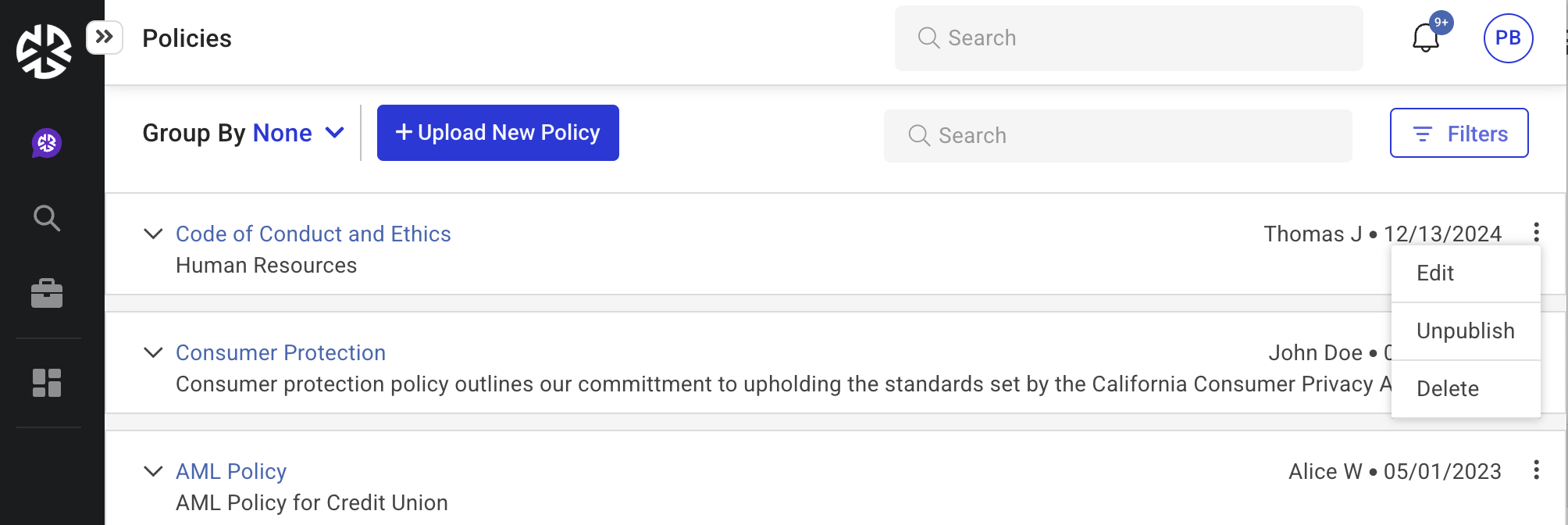
Locate the policy you want to unpublish and click the three-dot menu next to it.
-
Select Unpublish.
-
A confirmation message appears.
-
Click Yes to confirm.
-
Once unpublished, the policy can no longer be attached to authority documents.
-
Editing a Policy
To edit an existing policy:
-
Click Policies in the Compliance Management section of the Regology navigation bar.
-
Locate the policy and click Edit.
-
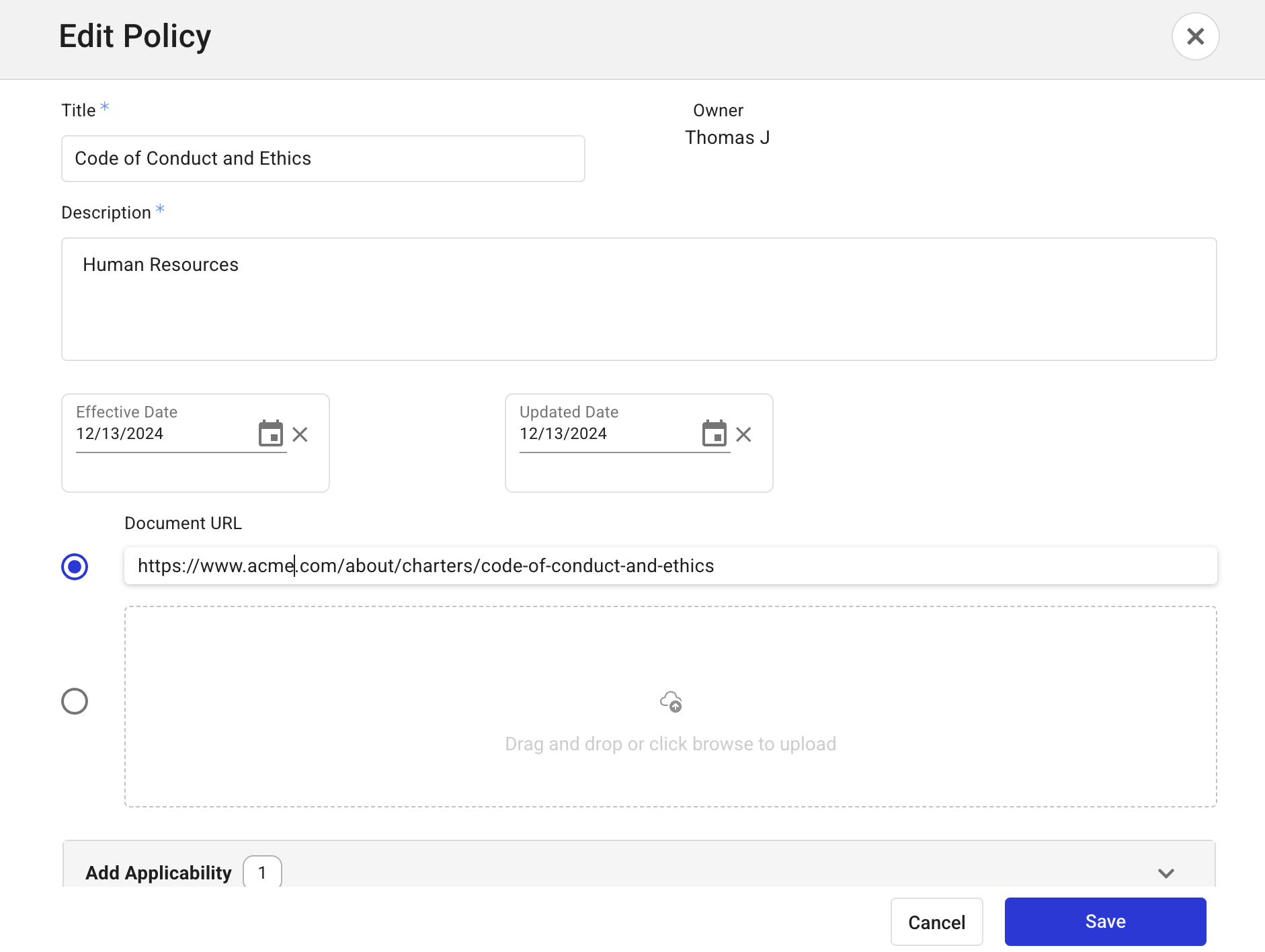
The Edit Policy modal appears.
-
Update any of the following details as needed:
-
Title
-
Description
-
Owner
-
Effective Date
-
Last Updated Date
-
Document URL or replace the uploaded file
-
-
Click Save to apply changes.
-
Click Cancel to discard unsaved changes.
Deleting a Policy
To delete a policy:
-
Click Policies in the Compliance Management section of the Regology main menu.
-
Locate the policy and click the three-dot menu next to it.
-
Select Delete.
-
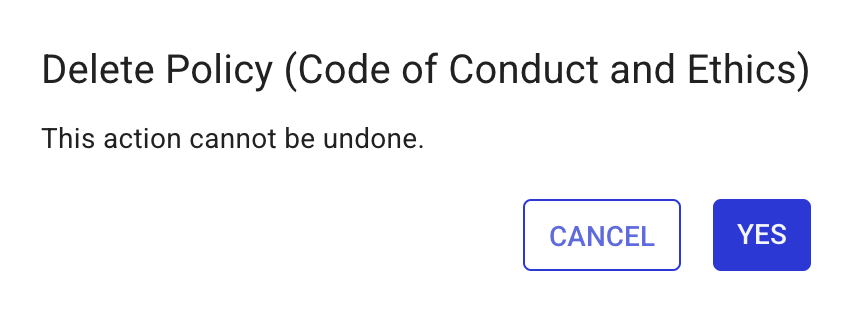
A confirmation message appears.
-
Click Yes to permanently delete the policy.