Applying Filters
The Filters panel for Controls includes the following options:
-
Search – Enter keywords to find specific controls.
-
Owner – Filter controls based on the assigned owner.
-
Status – Select from:
-
Not implemented ( Red)
-
Implemented (Green)
-
No longer relevant
-
-
Applicability – Filter controls based on their applicability criteria.
-
Authority Document – Narrow results by the authority document linked to each control.
-
Evidence Requirements – Filter based on required evidence for compliance.
-
Created Date – Sort or filter controls by their creation date.
Creating Saved Views for Controls
-
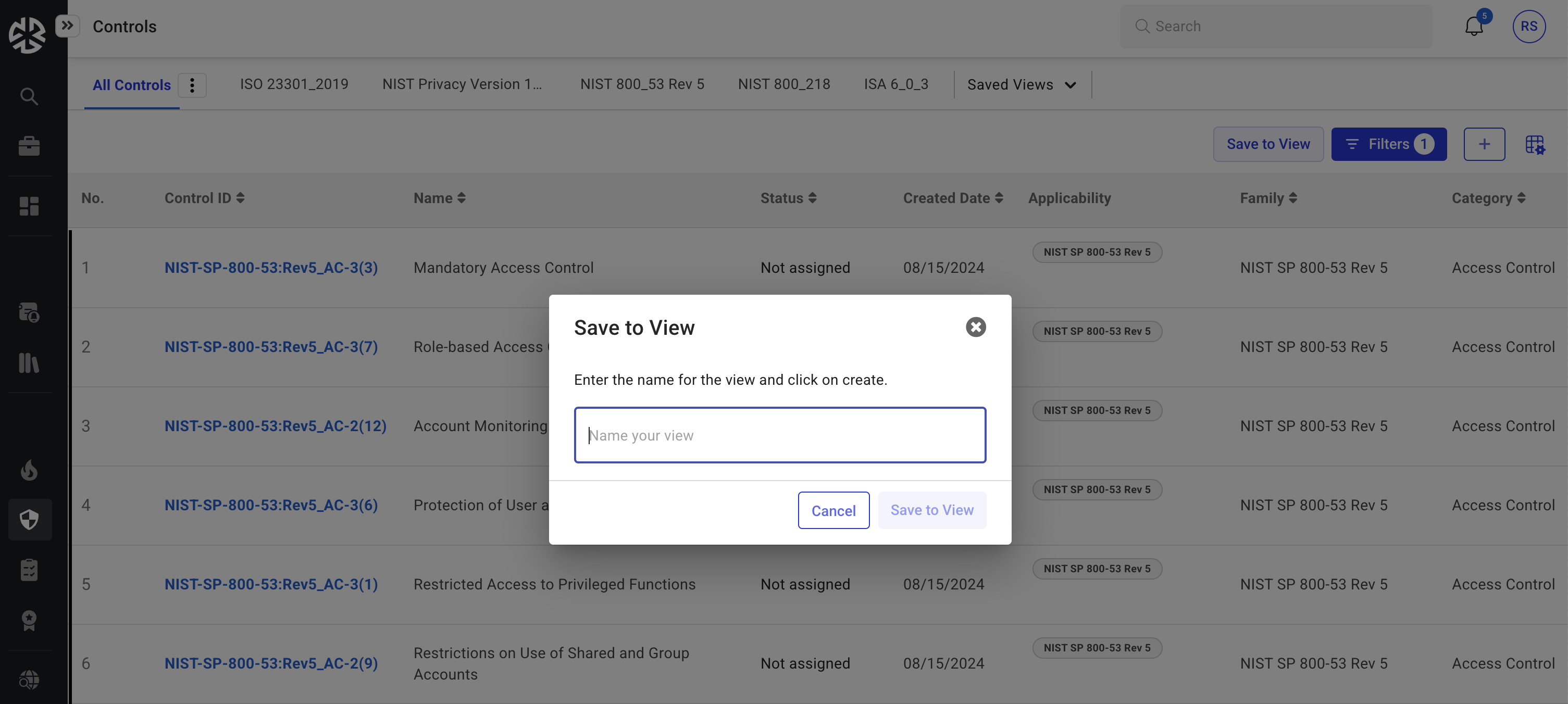
Apply filters to display relevant Controls.
-
Click Save to View.
-
Provide a name for the saved view.
-
The saved view appears as a separate tab for easy access.
-
Click Cancel at any time to discard unsaved changes.
Resizing the Controls View
-
Use the Resize Grid button to adjust the layout.
-
Click Layout Settings to save, reset or maximize the layout.
Right-Side Panel Options
-
Status – Expand the panel to assign a status to the Control.
-
Owners – Assign users/groups to the Control.
-
Applicability – Define where the Control applies.
-
Policies & Procedures – Attach or upload relevant policies and procedures.
-
Related Documents – Attach or upload related documents.
-
Requirements – Attach relevant regulatory or internal requirements to the Control.
-
Authority Documents – Link multiple Authority Documents to a Control.
-
Review & Comments
-
Add, reply to, and manage comments.
-
Use '@' mentions to tag users.
-
Assign comments as tasks using the “Create a task and assign to” option.
-