

Overview
The Reggi Settings page allows administrators to configure AI-powered capabilities within Regology. These settings control:
-
Reggi-generated summaries
-
Reggi Relevance scoring
-
Premium AI workflows and research features
-
AI prompt customization
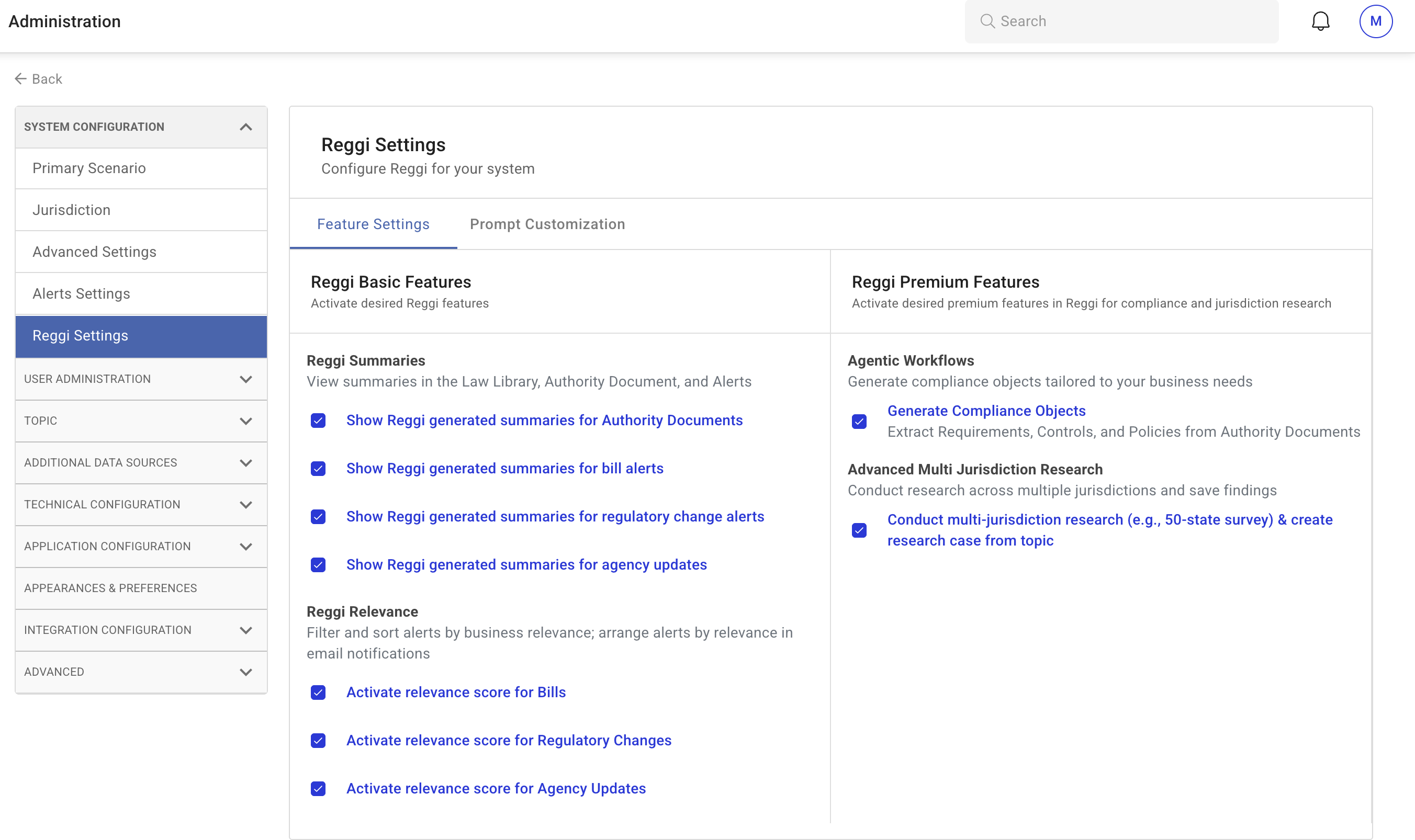
Steps to Configure
-
Navigate to Reggi Settings in the System Configuration menu.
-
The Reggi Settings page consists of two configuration tabs:
-
Feature Settings: Enable or disable key Reggi features.
-
Prompt Customization: Configure AI-generated responses and behavior based on organizational needs.
-
-
Adjust the settings as per your organization’s requirements.
-
A snackbar confirmation message appears when settings are enabled or disabled.
Tab 1: Feature Settings
The Feature Settings tab is divided into two sections:
-
Reggi Basic Features
-
Reggi Premium Features
Reggi Basic Features
This section controls foundational AI capabilities available within the Law Library, Authority Documents, and Alerts.
1. Reggi Summaries
Allows users to view AI-generated summaries in various areas of the platform.
Available Options
Administrators can enable or disable summaries for:
-
Authority Documents
-
Bill Alerts
-
Regulatory Change Alerts
-
Agency Updates
When enabled:
-
Reggi generates AI summaries for the selected content types.
-
A summary section appears within the respective module (e.g., Authority Document page or Alert view).
-
Users can review a concise overview of the source content without reading the full text.
-
The summary is displayed alongside the original source material for reference.
When disabled:
AI-generated summaries will not be produced or displayed in the selected modules, and users must rely solely on the full source content without automated summary assistance for quicker review.
2. Reggi Relevance
Enables AI-powered relevance scoring to help users prioritize alerts.
Available Options
Administrators can activate relevance scoring for:
-
Bills
-
Regulatory Changes
-
Agency Updates
When enabled:
-
Reggi evaluates alerts using AI to determine business relevance.
-
A relevance score or indicator is displayed within the alert.
-
Alerts can be sorted or prioritized based on relevance.
-
Relevance scoring may influence notification visibility or email prioritization.
When disabled:
Alerts will not be evaluated for AI-based relevance, no relevance indicators will appear in the interface, and users will not be able to sort or prioritize alerts based on automated relevance scoring.
3. Reggi Research
Reggi Research enables AI-assisted analysis of Authority Documents and jurisdictional requirements.
When enabled, users can:
-
Research Authority Documents for applicability, penalties, exemptions, and general Q&A
-
Ask contextual questions within a specific document
-
Conduct research across multiple jurisdictions (up to five at a time)
-
Perform cross-jurisdiction comparisons and synthesize findings
If disabled, users can still access Authority Documents, but AI-driven research and multi-jurisdiction analysis capabilities are not available.
4. Reggi Display Settings
Reggi Display Settings control where and how generative AI functionality appears within the platform.
When enabled, administrators can allow:
-
The Reggi Q&A Chatbot, which supports generative AI queries across all activated jurisdictions
-
Reggi within the Law Library, enabling document-specific queries (e.g., identifying key requirements within a regulation)
These settings determine the visibility and accessibility of Reggi within the interface.
If disabled, Reggi features are hidden from the respective areas, and users will not see AI query functionality in those modules.
Reggi Premium Features
This section controls advanced AI-driven compliance and research capabilities.
Premium features may depend on enabled modules within the tenant environment.
1. Agentic Workflows
Generate Compliance Objects
This feature enables AI to extract structured compliance components from Authority Documents, including:
-
Requirements
-
Controls
-
Policies
When enabled:
-
The Reggi icon and related workflow actions for compliance object generation appear within supported modules.
-
Users can initiate AI-driven extraction from Authority Documents.
-
The system generates structured compliance outputs aligned to business needs.
-
Extracted objects can be reviewed, refined, and incorporated into the organization’s compliance framework.
When disabled:
-
Compliance object generation features are not accessible.
-
The related Reggi icon for these functions will not appear.
2. Advanced Multi-Jurisdiction Research
Conduct Multi-Jurisdiction Research
Allows users to:
-
Perform large-scale cross-jurisdiction research (e.g., 50-state surveys)
-
Create research cases from defined topics
-
Save, organize, and manage multi-region findings
When enabled:
-
Advanced multi-jurisdiction research tools become accessible.
-
Users can conduct broad comparative research across numerous jurisdictions.
-
Research cases can be created and stored for future reference.
-
Findings can be synthesized and managed within the research workflow.
When disabled:
-
Research case generation and multi-jurisdiction comparison features are unavailable.
-
The corresponding Reggi icon functionality is disabled.
Feature Dependency Behavior
-
Premium features can be enabled or disabled individually.
-
Disabling a premium feature removes access to its related Reggi functionality.
-
The visibility of certain Reggi icons depends on the enabled feature configuration.
-
Changes apply immediately after confirmation.
Tab 2: Prompt Customization
The Prompt Customization tab allows administrators to fine-tune Reggi’s AI-generated responses to align with business needs.
-
Company Prompt: Define general topics or areas of interest that the AI should focus on when generating responses. This includes customizing AI-generated document summaries with an additional prompt.
-
Whom Does It Apply To: This setting allows you to customize how AI responses interpret applicable entities, business scope, and organizational coverage, ensuring that outputs align with how your organization applies regulatory requirements.
-
Penalties for Non-Compliance: Configure how Reggi presents information regarding regulatory penalties. Administrators can tailor the format and emphasis of penalty-related outputs.
-
Exemptions: This setting allows you to control how Reggi identifies and presents exemption-related information within requirements, controls, policies, and regulatory documents.
Administrators can adjust these settings by toggling the options and selecting relevant prompts. On applying changes to the toggle, you will get a confirmation via a snackbar message.
By following the outlined steps, users can efficiently configure the platform to meet their needs. For further assistance, contact the Regology support team.