Alerts Insights provides analytical widgets that surface key trends in your alert data, helping you identify patterns and prioritize action. Insights are displayed via Micro Widgets on the Alerts page.
Note: Alerts Insights is available only on the Regology-delivered "All Alerts" view. Micro Widgets must be enabled by an administrator before they can be accessed.
Enabling Micro Widgets
Micro Widgets are disabled by default and must be enabled in the Administration settings.
-
Navigate to the Administration section.
-
Go to the Alert Grouping tab.
-
Locate the checkbox labeled Enable Micro Widgets in Alerts.
-
Enable the checkbox to allow Micro Widgets to appear in the Alerts module.
Accessing Micro Widgets
To enable analytical insights:
-
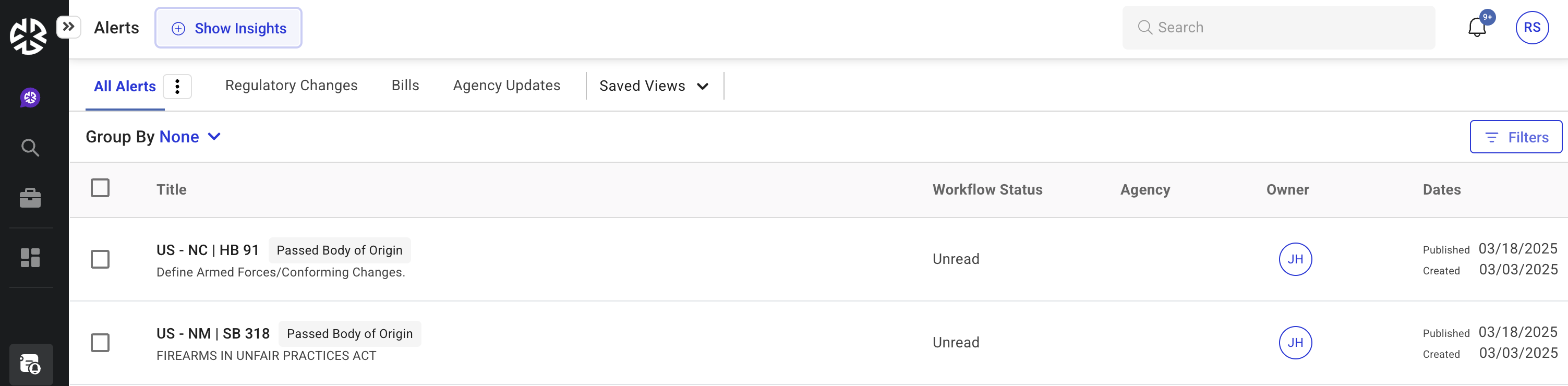
Navigate to the Alerts page.
-
Click on the Show Insights button next to the Alerts title.
-
The default widgets appear, showing key alert-related analytics.
To hide insights:
-
Click the Hide Insights button to return to the standard alerts view.
Default Widgets
When you click 'Show Insights,' the following widgets appear by default:
-
Alerts by alert category in the last 30 days
-
Alerts by workflow status in the last 30 days
-
Bills by status in the last 30 days
-
Top 5 agencies with updates in the last 30 days
-
Number of Open impact assessments
-
Total number of impact assessments
Customizing the Micro Widgets Dashboard

-
Click the pencil (Edit) icon on the Insights panel.
-
To remove a widget, click the X icon on the widget.
-
Add widgets via the Add Widget button. Available options include:
-
Alerts by workflow status
-
Bills by status
-
Top 5 agencies with updates
-
Top 5 states with the most bills
-
High relevance alerts
-
Medium relevance alerts
-
Low relevance alerts
-
-
Click Save Changes to update the dashboard.
Managing Widgets
-
The number of displayed widgets is limited based on available screen space.
-
If no space remains, the Add Widget option is disabled.
-
When adding widgets, unavailable widgets will have their selection checkboxes disabled.
Widget Interactions
Widgets are interactive. Clicking on a chart element applies a corresponding filter to the Alerts list:
-
Alerts with Open Impact Assessments Widget: Filters alerts that are New or In Process with an initial impact assessment.
-
Total Alerts with Impact Assessments Widget: Filters alerts that are New, In Process, or Closed with an initial impact assessment.
The supported chart types include pie charts, bar graphs, and column charts.